
Admin guide · Phone Campaigns
Create and manage a Phone Campaign
Give your callers a focused voter list, a clear script, and an organized way to record results.
Phone Campaigns bring phone banking into UpVote. Organize calling lists, guide conversations, and record responses in one place.
For relational outreach, use Friend Banking: volunteers call people they know from their own phone numbers. These personal connections tend to produce higher response rates and can be especially effective for persuasion and voter mobilization.
If your campaign uses click-to-call software for phone banking, callers can use it alongside UpVote Phone Campaigns.
1. Create your campaign
- Create a voter group for your calling audience. Use Advanced Search to find the right voters and create a group.
- When prompted after creating the group, choose to turn it into a Phone Campaign. You can also open Phone Campaigns in the sidebar and select Create Phone Campaign.
- Select the group, name the campaign, and click Create.
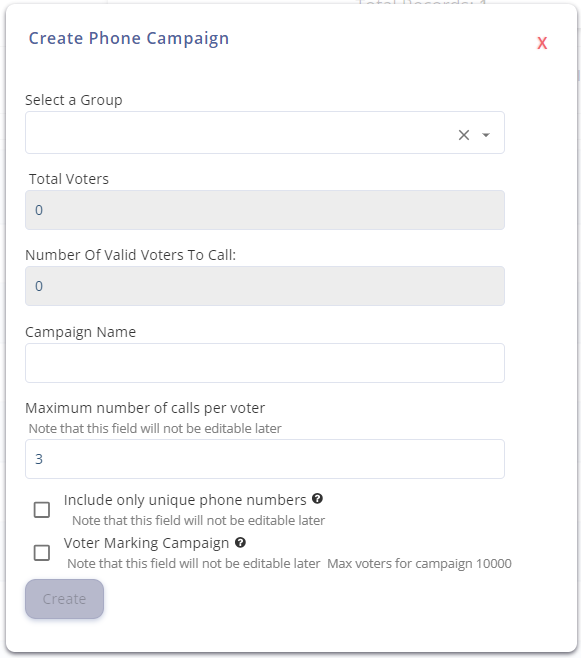
Total Valid Voters to Call shows voters with valid phone numbers who are not on the do-not-call list.
2. Add callers and a script
Add your team
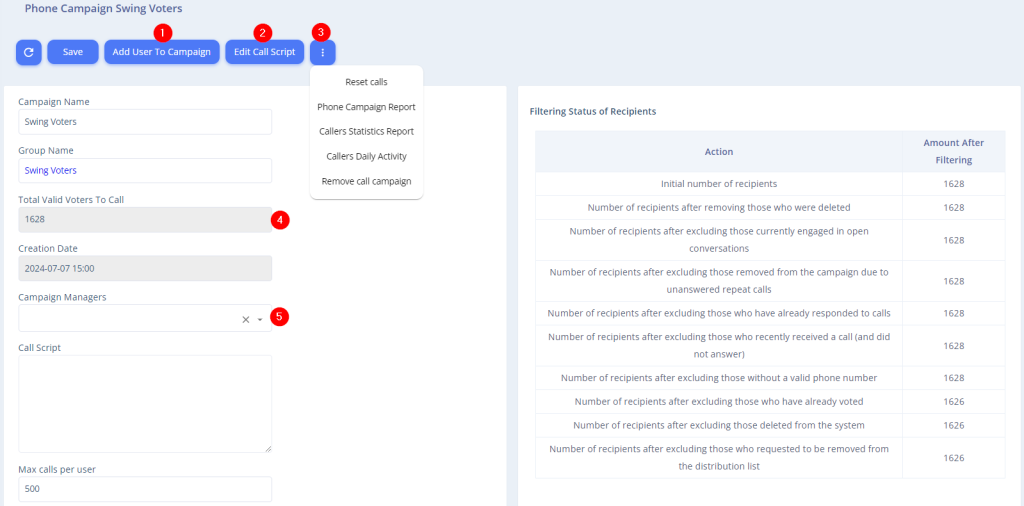
Use Add User to Campaign to add the people who will make calls.
You can also assign a Campaign Manager to oversee this Phone Campaign. This role can manage campaign settings and scripts, but cannot export reports or perform actions reserved for the system administrator.
Prepare the conversation
Open Edit Call Script and build the questions and answers callers should use. Keep the script focused on the campaign’s purpose and make the information callers need to record clear.
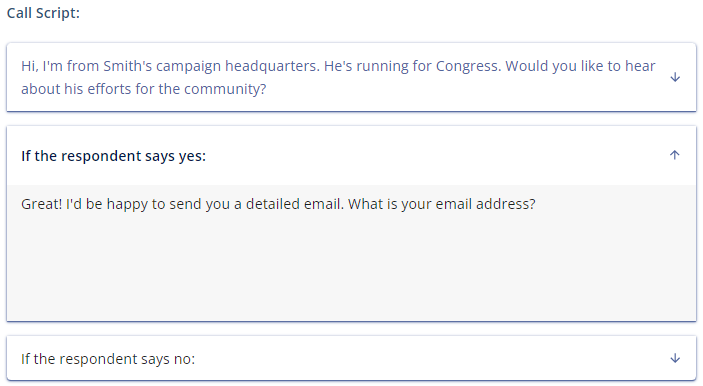
Record answers in your campaign’s custom fields
Add your custom fields to the Phone Campaign as dropdown selections. Callers can choose responses directly in the calling interface, and those entries update the voter database for future targeting and follow-up.
Use Campaign Parameter Management to decide which fields callers can view, edit, or must complete.
Share the volunteer calling guide with your team before they start.
3. Set calling rules and save
Returning after a break? Phone Campaigns automatically become inactive after two weeks without activity. An admin must reactivate the campaign before calling can resume. Check the Active setting and save your changes.
Review these core settings before your team begins:
- Active: Controls whether calls can be made in the campaign. A campaign with no activity for two weeks automatically becomes inactive and must be reactivated by an admin.
- Max Calls per User: Limits how many calls a caller can receive.
- Maximum number of calls per voter: Sets the limit on unanswered attempts before a voter leaves the queue.
- Hours Until Unanswered Voter Returns to Queue: Sets the waiting period before another attempt.
- Update Voters in Campaign: Chooses whether the calling audience updates with its dynamic group or stays fixed as of campaign creation.
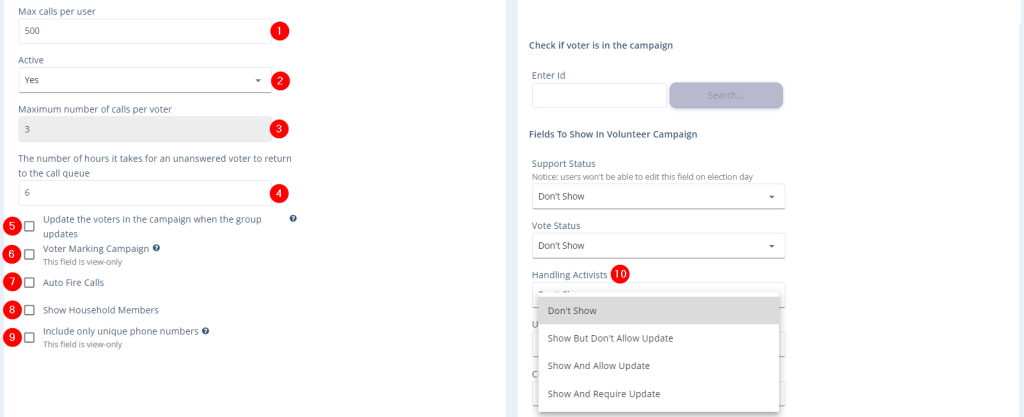
Finish by clicking Save at the top of the page. Check your audience, script, and retry settings before asking callers to begin.
More campaign options
- Voter Marking Campaign: Lets users work from a list in any order instead of a predetermined sequence.
- Auto Fire Calls: Connects the workflow to dialing when callers use a softphone.
- Show Household Members: Displays people with the same last name and address.
- Include Only Unique Phone Numbers: Includes only one voter when records share a primary or secondary phone number.
- Campaign Parameter Management: For each field, choose whether to hide it, show it without editing, allow editing, or require an update.
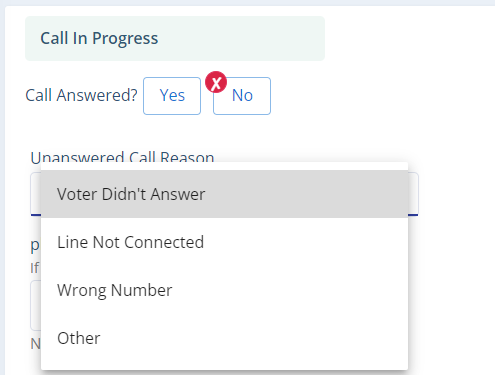
Understand what happens after an unanswered call
Callers select a reason, and that choice affects the queue:
- Line Not Connected or Wrong Number: Removes the voter from this campaign’s call queue.
- Voter Didn’t Answer or Other: Allows another attempt after the waiting period, subject to the campaign’s attempt limit.
When to use Reset Calls
The additional-options menu includes Reset Calls, which makes unanswered calls available for immediate follow-up rather than waiting for the configured delay. Use it deliberately so voters are not called again too soon.
4. Review activity and results
Check the statistics at the bottom of the campaign screen to understand calling progress and results.

Download reports to track phone banking activity, voter responses, and caller performance. Use the results to identify who needs support and plan the next round of outreach.

Available reports
- Phone Campaign Report: Call records and recorded field values.
- Callers Statistics Report: Calling statistics by caller.
- Callers Daily Activity: Activity for a selected day, including first and last call times.
Report exports are reserved for the system administrator.
Watch the setup walkthrough
Screenshots and the tutorial show an earlier interface. Labels and available options may differ in your account. Tap a screenshot to enlarge it.