
UpVote guide · Campaign email
Create and send email newsletters
Design campaign emails, choose your audience, and share updates directly from the UpVote Admin Portal, without exporting contacts to another system.
Before you start
You need an active UpVote campaigns license, system administrator privileges, and approved sending settings. Your email specialist will help you complete setup during onboarding.
Find the tool: Log in to the Admin Portal and select Newsletters in the left sidebar.
What’s included with your license
- Domain setup and email authentication configuration: DKIM, SPF, and DMARC.
- Professional email signature setup.
- Spam risk assessment and sender reputation guidance.
- Newsletter onboarding with an email specialist.
- Your first 5,000 email sends free.
Authentication helps receiving email services verify your sender identity. Inbox placement also depends on factors such as sender reputation, audience quality, and message content.
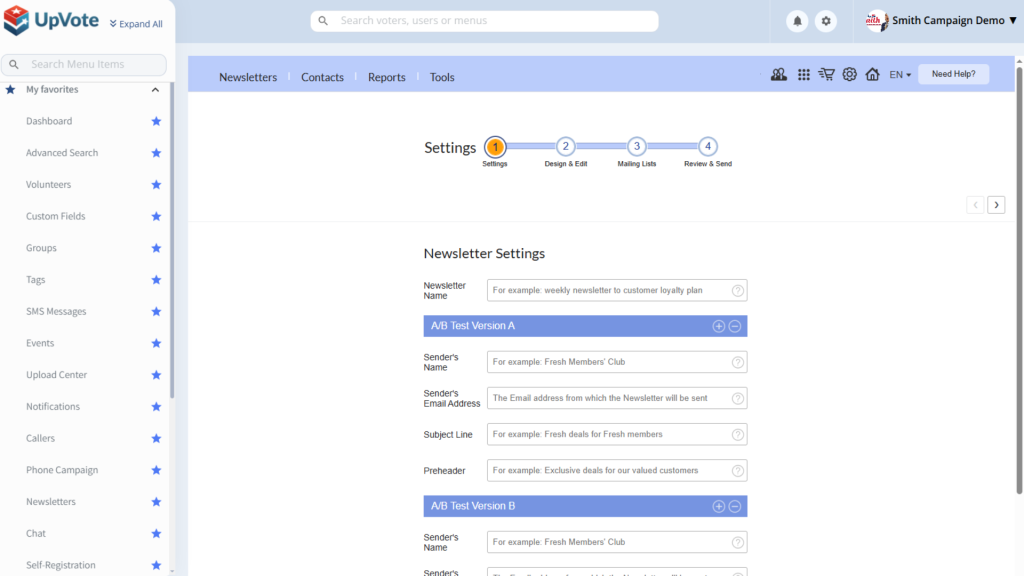
1. Complete your sending settings
- Open the Settings step.
- Fill in the required sender and account information.
- Save your changes and complete the required approval process with your email specialist.
See a missing-settings warning? Complete the required fields before moving on. Sending remains unavailable until the necessary setup and approval are complete.
2. Choose a template and make it yours
Open Design & Edit, then choose a starting point under Select your Template.
Start with a design
Browse designed templates, including Basic, Most Popular, Colored, Holidays, and Blank options.
Reuse or import
Choose Customized templates, revisit Past Newsletters, or use Upload from URL to import an existing design.
Update the text, replace images, and adjust buttons and links. Save your changes when you finish.
Keep it recognizable: Reuse a consistent layout and give each email one clear purpose, such as registering for an event or signing up to volunteer.
3. Choose your mailing list
Open Mailing Lists and select the audience for this newsletter.
Depending on your campaign’s lists, you might reach volunteers, donors, event RSVPs, supporters in a particular area, or contacts with specific tags.
Check that the selected list fits your message. If you organize audiences with tags, make sure those tags are current.
4. Review, test, and send
Open Review & Send and check the following before sending:
- Subject and sender: Is it clear who the email is from and why someone should open it?
- Audience: Have you selected the intended mailing list?
- Links and buttons: Does each one lead to the correct destination?
- Images and formatting: Is the message readable on a narrow phone screen?
- Next step: Is the action you want readers to take easy to find?
Test before sending: Send a test email to yourself or a teammate. Open it on a phone and a computer, check the links, and review the final version before sending to the full list.
Set a useful rhythm
As a starting point, consider weekly updates during busy campaign periods and an email every two weeks during quieter periods. Adjust based on what your audience needs and whether you have something useful to share.
Keep each email focused. A short message with one clear action is easier to follow than several competing requests.
Troubleshooting
“My account lacks settings for sending newsletters”
Return to Settings, complete all required fields, and save. If sending is still unavailable, ask your email specialist whether approval or additional setup is needed.
My newsletter does not display correctly
Try a simpler template, use smaller image files, and paste text as plain text rather than carrying over formatting from Word or Google Docs. Send another test after making changes.
I need help with setup or mailing lists
Contact the UpVote team for a walkthrough of sender setup, template choices, audience selection, or your campaign’s email plan.
Make every email easy to act on
Choose the right audience, share a focused message, and test before sending. A consistent newsletter helps your campaign keep people informed and involved.