
UpVote guide · Team communication
Stay connected with UpVote’s in-app chat
Keep campaign updates, volunteer questions, and team encouragement in one place. UpVote’s group chat helps your team stay informed and connected as you organize.
Open chat and join the conversation
-
Open Chat from the menu.
Look for the Chat page in UpVote’s navigation menu. -
Read the latest updates.
Catch up on campaign announcements and questions before adding your own message. -
Type your message and tap send.
If volunteer posting is enabled, use the message field at the bottom of the chat to join in.
For your campaign team: Use chat to coordinate volunteers and share updates. Use your campaign’s outreach tools when contacting voters.
Chat on web and mobile
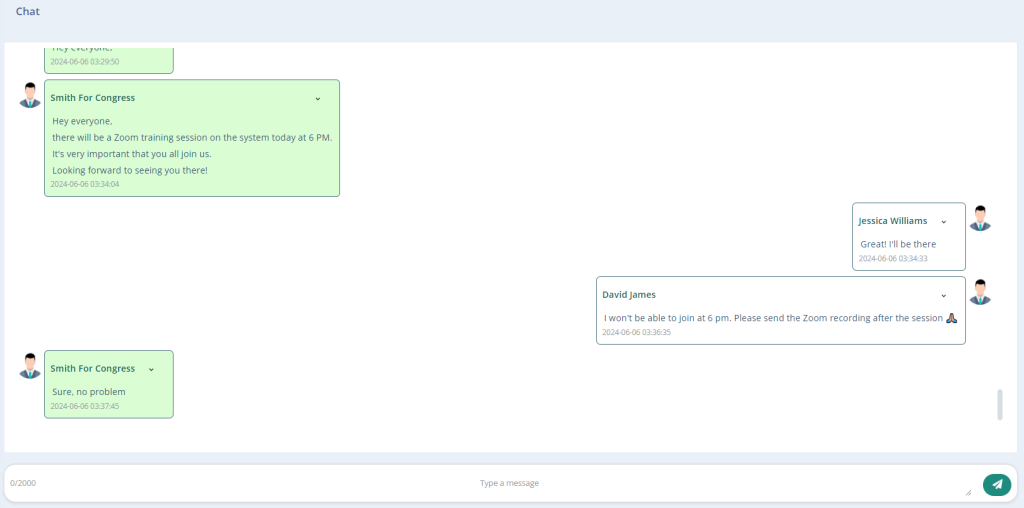
These examples show campaign announcements and volunteer replies in the group conversation. Tap either screenshot for a closer look.
On the web
In the app
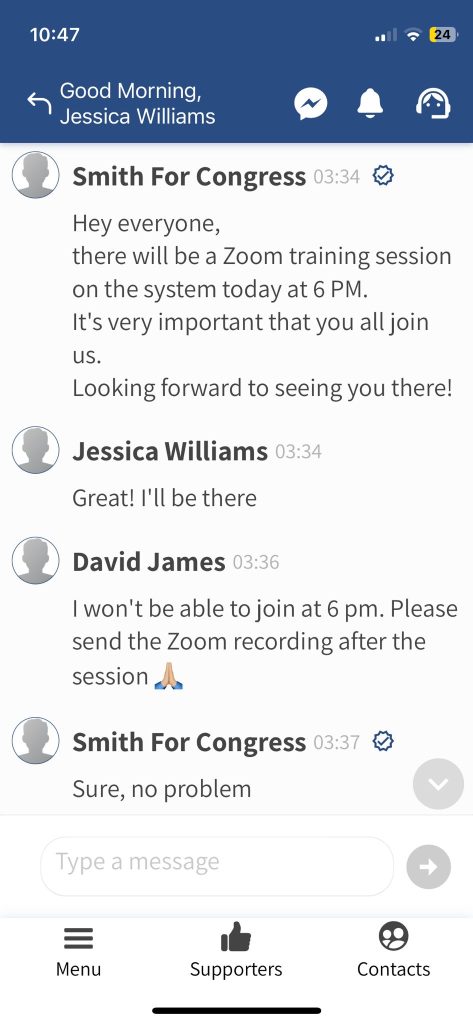
Screenshots show an earlier interface. The layout may look different in your version of UpVote.
Campaign admins: choose who can post
On the Settings page, look for Allow Activists Chat. This setting controls whether volunteers can send messages.

Checked
Volunteer discussion
Allow volunteers to post messages, ask questions, and contribute to the conversation.
Unchecked
Administrator-only updates
Only the system administrator can send messages. Use this option for a focused announcement channel.
Make chat useful for your team
- Share clear next steps. Include the time, location, and action volunteers should take when announcing a training or activity.
- Keep questions focused. Give enough context for someone to help, and check recent messages in case your question has already been answered.
- Encourage participation. Welcome new volunteers, thank teammates, and recognize progress.
- Set expectations. Tell volunteers how your campaign uses chat and where to go for individual support.
Try a simple welcome message:
“Welcome, team! We’ll use this chat for campaign updates and volunteer questions. Please keep messages focused and respectful. Thanks for being part of the campaign!”
Common questions
Where do I find chat?
Open UpVote’s navigation menu and look for the Chat page.
Why can’t I send a message?
Your campaign may have enabled administrator-only posting. Ask your campaign team how they would like you to share questions or get help.
What should we use chat for?
Campaign updates, volunteer coordination, questions, and team encouragement. A clear purpose helps everyone find useful information quickly.
Keep your team informed and connected
A clear update, a timely answer, or a quick word of encouragement can help volunteers feel supported and ready to take their next step.