
UpVote guide · Voter data matching
Smart Match: Matching an Uploaded List to Voters
Have a list with names and partial contact details? Use Smart Match to find corresponding voter records, review suggestions, and organize follow-up.
When to use Smart Match
Smart Match is designed for lists from outside UpVote, such as a list shared by a supporting organization. It compares available details against your campaign’s voter file, even when the list is missing voter IDs or addresses.
Working with your own phone contacts? Use Contact Match instead.
1. Prepare and upload your list
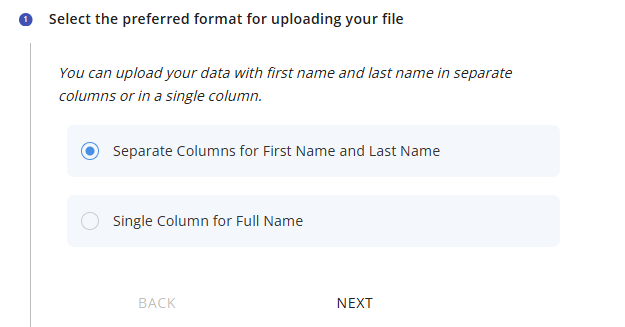
Choose the format that fits your file: separate first and last name columns, or a single full-name column. Download the Excel template provided in the Admin Portal and follow its column requirements.
Select your file to upload. More complete and accurate details give you more information to assess possible matches.
2. Organize the matched records
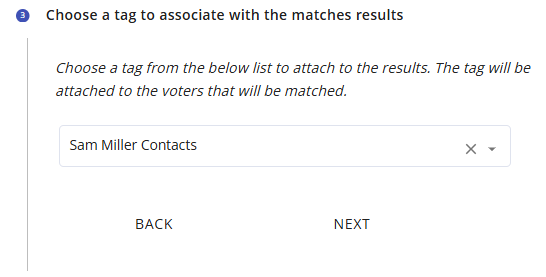
- Add a tag: Label matched voters so you can identify the source list later, such as “City Council Member List.”
- Assign follow-up: Associate matched voters with the staff or volunteers responsible for contacting them.
- Choose a support status: Use the available options to reflect what you know. Being included on a list does not confirm support.
- Authorize reviewers: Select which campaign users can view the match results.
3. Set your confidence threshold
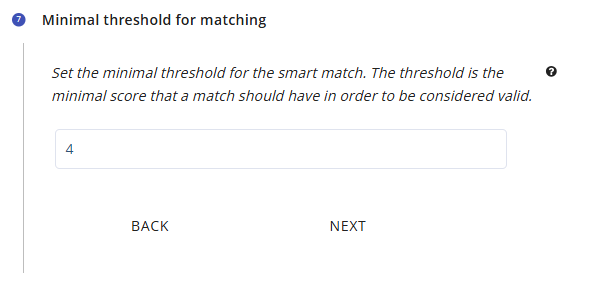
A list entry may have several possible matches. Smart Match gives suggestions a score; higher scores indicate greater confidence according to the matching algorithm.
The threshold setting filters out lower-scoring suggestions. Review the instructions in your account and ask your UpVote representative for help choosing a threshold that fits your data.
A score is a guide, not proof. Check the available details before approving a suggestion, especially when several voters share a name.
4. Choose automatic matching conditions
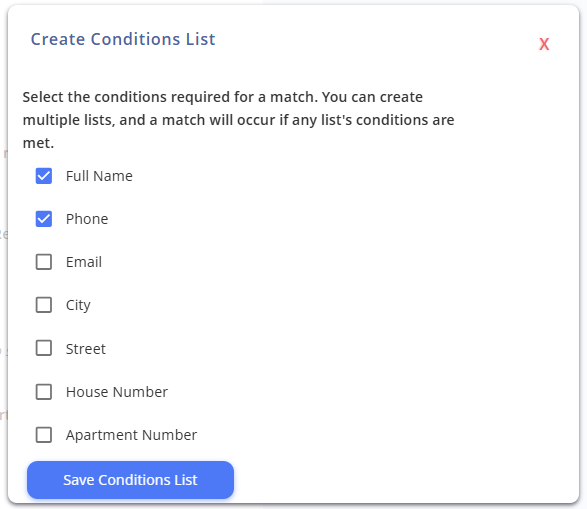
You can define conditions that automatically confirm a match. For example, selecting full name and phone number allows automatic matching when those conditions are met.
Review these rules carefully before processing the list. Automatic matching and manually reviewing suggestions are different paths to confirming a record.
5. Review and confirm suggested matches
Check the settings before approving records
Use Show smart match details to expand the upload summary. Review the Conditions for automatic matches and The following actions will be performed for the selected matches. These identify the matching rules and configured follow-up actions, such as adding a tag or linking voters to volunteers’ Outreach Lists.
The summary also shows Volunteers that have the permission to view the results. Check who is authorized to help review the list. Use Hide smart match details to collapse the summary and focus on suggestions.
Find and organize the rows to review
- Search: The search field supports first name, address, or phone number.
- Sort results by: Choose Highest Score, First Name, Last Name, or Row Number, then use Sort.
- Total Rows / Filtered records: Read these beside the suggestion list to understand the current review view.

Compare each suggestion with the uploaded record
Each review block identifies the uploaded Row Number and source details. Candidate cards show a Score and available phone, email, and address information. Compare those details before choosing a person.
- Find the source row you want to review.
- Compare the suggested voter records with what you know about that person.
- Choose Save as Match on the correct candidate when you are confident.
- If the source row is irrelevant to the review, the row-level Irrelevant control is available. Leave uncertain cases unconfirmed while you investigate.
Saving a match affects campaign data. Review the configured actions first. Confirming a match can add uploaded information to the existing voter record and apply the tag or volunteer associations configured for that upload. A high score helps prioritize review; it does not establish identity by itself.
6. Review completed matches and progress
Click Show Records That Have Been Matched to open completed rows. The table includes original row numbers, source fields, and Voter Details links for checking the associated voter.
The details summary separates Total number of records for which matching suggestions were found, Total Matches Already Done, and Total matched done by volunteers. It also shows rows with and without suggestions and a Smart Match Suggestion Segmentation chart.
These describe different stages of matching. Do not treat suggestions as completed matches or assume the current suggestion-list count equals the original upload size.
Use Export To CSV when you need a downloadable report.
Common questions
Does the list need voter IDs?
No. Smart Match can use partial information to suggest records from your campaign’s voter file. You still need enough reliable information to confirm the correct person.
What if several people could be the right match?
Compare the available details and investigate before confirming. A higher score helps prioritize review but does not establish someone’s identity.
Does a matched voter necessarily know the assigned volunteer?
No. A data match does not establish a personal relationship. Plan follow-up accordingly, and review the peer-to-peer texting guidelines before using personal texting tools.