
UpVote Events
Create campaign events, collect RSVPs, manage guest lists, track attendance, and connect event participants back to voter records in UpVote.
Create your event
Go to the Events page and click the add icon. Enter the basic information supporters need to understand when and where the event is happening.
Add the location
Enter the location where your event will take place.
Set the date & time
Enter when the event starts so registrants receive the correct event information.
Add the event title
Use a clear title that supporters will immediately recognize.
Watch the UpVote Events walkthrough
See the complete Events workflow before creating your own event.
Manage everything from one event page
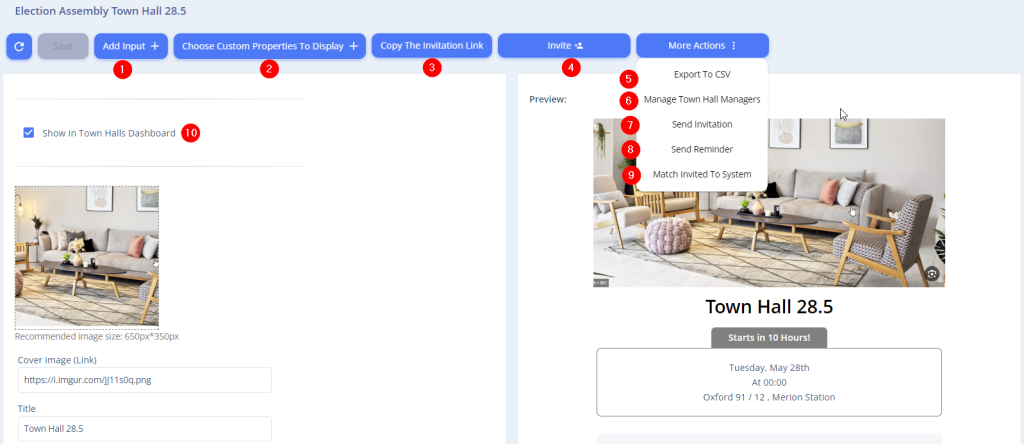
After saving your event, UpVote gives you tools to customize registration, invite guests, message attendees, export data, and connect registrants back to voter records.
Add Input
Add additional fields to your event registration form.
Choose Custom Properties
Display dynamic UpVote properties as fields on the registration form.
Copy Invitation Link
Copy the registration link and share it through WhatsApp, SMS, Facebook, and other channels.
Invite Guests
Add guests manually or upload a larger guest list using Excel.
Export to Excel
Export a report containing your complete event guest list.
Event Managers
Give additional managers access to edit event details and add guests.
Send Invitation
Send an editable SMS invitation containing the event details and registration link.
Send Reminder
Send an SMS reminder immediately or schedule the message for later.
Match Invited To System
Match guests to voter records using phone number, email, and name.
Customize the registration form
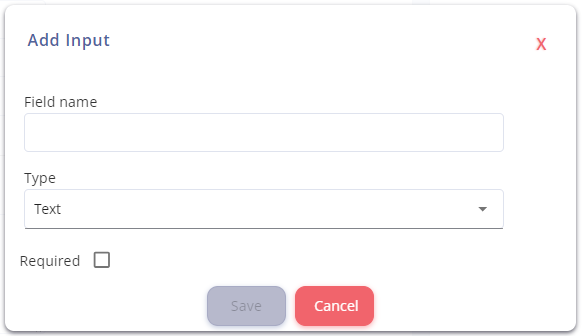
Guests enter their basic information when registering. You can also add additional fields when your campaign needs more information.
Standard registration information
- First Name
- Last Name
- Phone Number
- Number of Attendees (optional)
Add your own fields
Click Add a Field, choose the field name, select the type, and decide whether it should be required.
- Text
- Checkbox
- Number

Manage your guest list and attendance
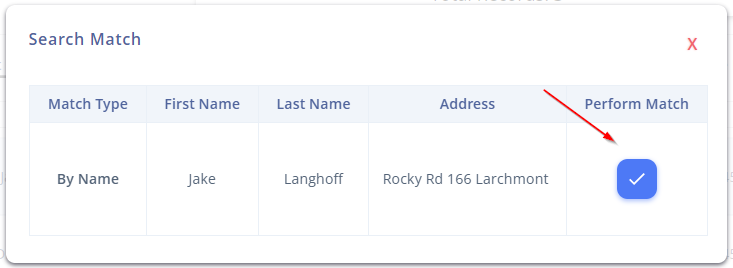
Your guest list appears in the table at the bottom of the event page. From there you can export the list, mark attendance, and connect registrants to voter records.
1. Mark attendance
Record whether each registrant actually attended the event.
2. Find Match
Link the guest to the correct voter record inside UpVote.

Why matching matters
Once the guest is linked to a voter record, their event participation is documented on that voter record. This helps your campaign preserve the relationship and organizing history beyond the event itself.
UpVote Events Dashboard
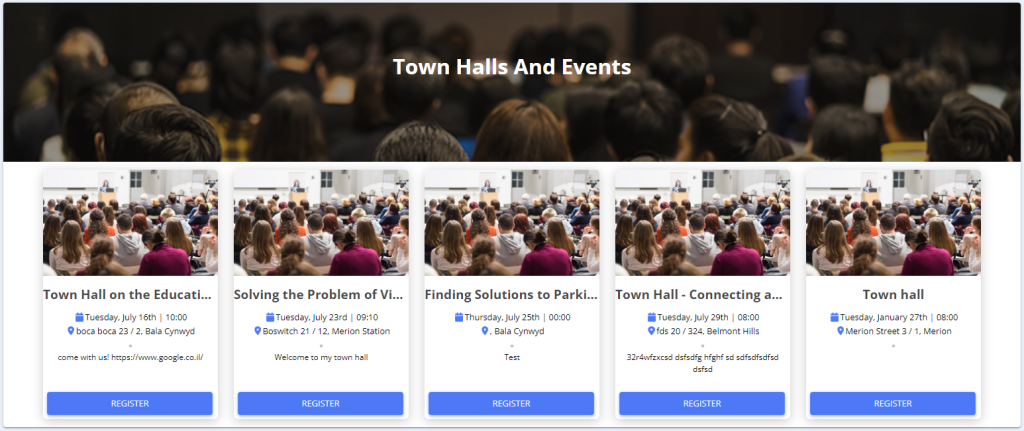
Instead of sharing events one at a time, you can create one public page that lists your upcoming events in chronological order. Supporters can browse the page and register for multiple events.
Customize the dashboard
Use Town Halls Dashboard Settings to edit the dashboard title and page description.
Share one link
Copy the dashboard link and send supporters to a single page where they can see all of your upcoming events.
Best practices
- Keep registration simple. Only require information your campaign will actually use.
- Send reminders. Use scheduled reminders before the event to reduce no-shows.
- Track actual attendance. Knowing who attended is more useful than only knowing who registered.
- Match guests back to voters. This keeps event participation connected to your campaign’s voter and organizing history.
Contact your UpVote representative and we’ll help you choose the best event and registration setup for your campaign.